How to Visualize Dependencies in Jira
Jira stores dependencies as issue links, such as "blocks" and "is blocked by", and as the parent-child hierarchy of epics, stories and subtasks. There are three ways to see them: the linked issues section of one issue, the dependencies view in Jira Plans, and a dependency graph app.
1. The linked issues section of an issue
Every Jira issue lists its direct links. It is free and built in, but it shows one issue at a time: you cannot see the blockers of a blocker, or the links of a whole sprint, without opening each issue.
2. The dependencies view in Jira Plans
Jira Plans has a dependencies view that shows work items as tiles connected by arrows. It is available only in Jira Premium and Enterprise, and only for the work items inside a plan.
3. A dependency graph app
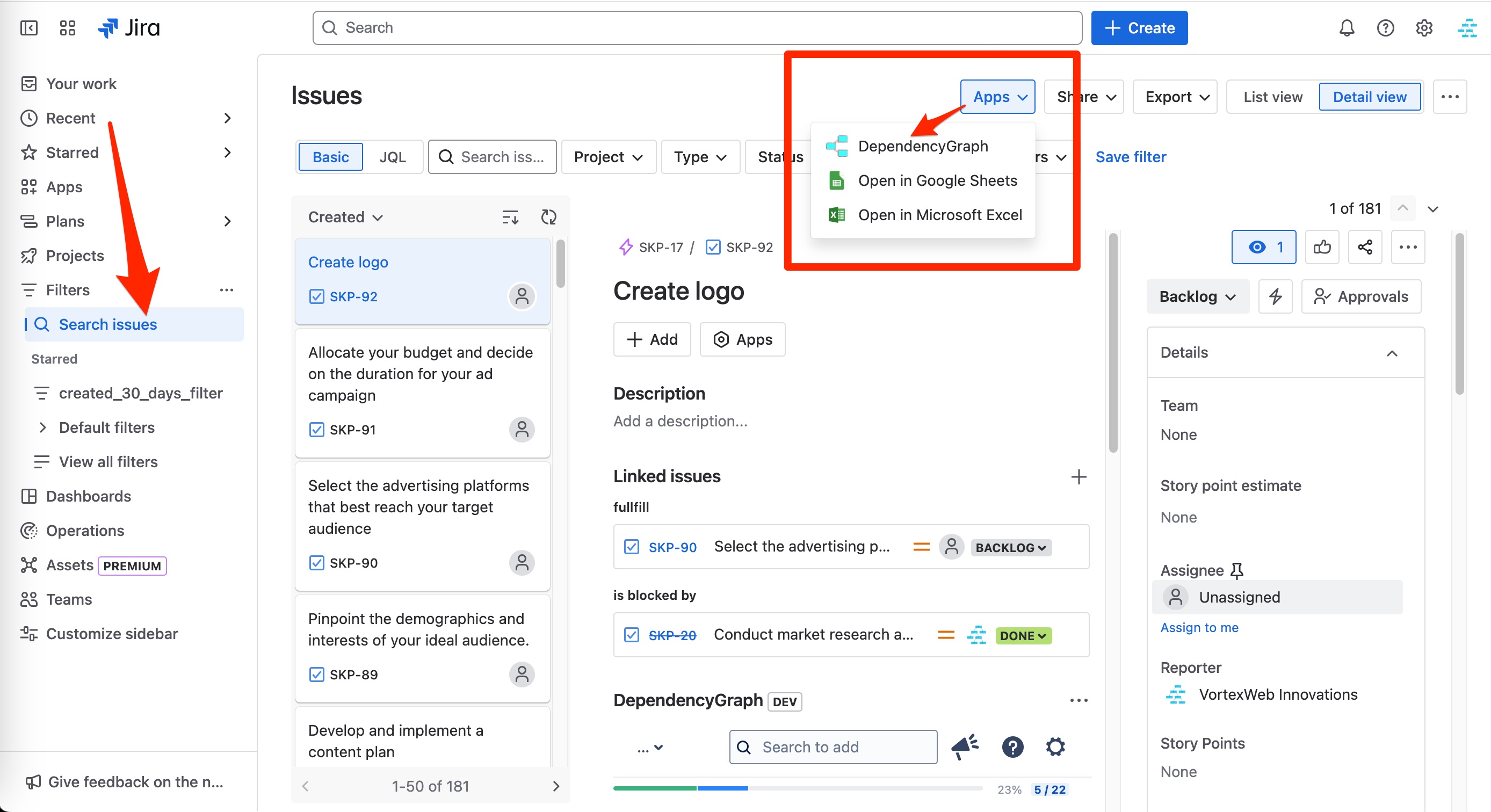
A Marketplace app draws the links as a graph wherever you work. Dependency Graph opens from the issue view, issue search, boards, backlogs, sprints, projects, dashboards and JSM queues, on any Jira Cloud plan.
Visualize dependencies with Dependency Graph, step by step
- Install Dependency Graph from the Atlassian Marketplace. It is free for up to 10 users.
- Open any issue and click the Dependency Graph button, or open the app from issue search, a board, a sprint or the Apps menu.
- To map more than one issue, start from a JQL query, a saved filter, an epic or a release.
- Select an issue to highlight its whole dependency path.
- Group by project, team or epic to see cross-project, cross-team and cross-epic dependencies.
- Group by dependency level to see which work items can start first.
- Create or delete links on the graph to fix missing or wrong dependencies; changes save to Jira.
Linked issues vs. dependency graph
Jira lists two direct links; the graph shows the whole chain

Visualize a JQL search
Map the dependencies of every issue in a search
- ✓ Free for up to 10 users
- ✓ No setup
- ✓ Runs on Atlassian
- ★ 5.0 on Marketplace
Group dependencies by status
See where blocked work is waiting

Visualize cross-project dependencies

Frequently asked questions
Does Jira have a built-in dependency graph?
Partly. Each issue lists its direct links in the linked issues section. Jira Plans has a dependencies view, but it sits inside a plan and needs Jira Premium or Enterprise. For a graph of any issue, search, board or sprint, use an app such as Dependency Graph.
How do I see what is blocking a Jira issue?
The linked issues section shows the direct blockers. To also see the blockers of those blockers, open the issue in Dependency Graph and select it to highlight its whole dependency path.
How do I see dependencies across projects in Jira?
Search the projects with JQL, open the results in Dependency Graph, and group the graph by project.
What is the difference between a dependency map and a dependency graph?
Both names describe the same picture: work items as boxes and issue links as arrows. "Map" is common among planners, and "graph" among developers.
Which link types count as dependencies?
Usually "blocks / is blocked by". Dependency Graph shows all link types, lets you exclude noisy ones such as "relates to", and lets you reverse how a link type is drawn.
Try Dependency Graph free on Atlassian Marketplace
- ✓ Free for up to 10 users
- ✓ No setup
- ✓ Runs on Atlassian
- ★ 5.0 on Marketplace
Not a Jira admin? Ask your admin to install it.